Basic blocks and their functions
Browsing and Using Blocks
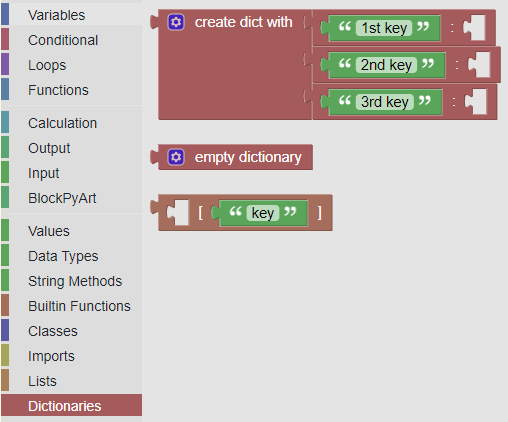
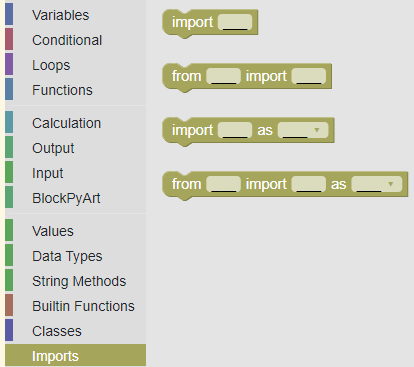
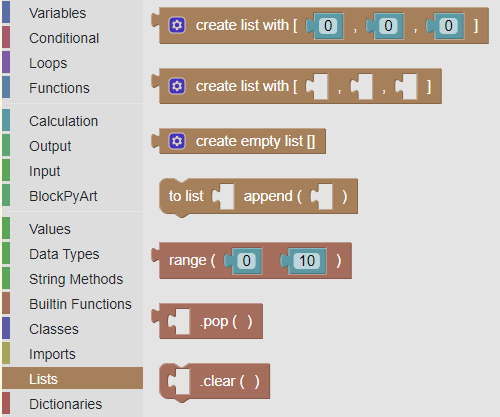
1. Explore Block Categories: In the "Blocks Area" (on the left), you'll find categories like "Variables", "Conditional", "Loops" , "Functions", "Calculation" , "Output" , "Input" , "PyArt Block", "Values", "Data Types" , "String Methods" , "Builtin Functions" , "Classes", "Lists", and "Dictionaries". Click on a category to see the blocks available within it.
2. Drag and Drop Blocks: Click on a block within a category and drag it to the "Blocks Code Area" (the middle area).
3. Connect Blocks: Blocks have connectors that allow you to link them together to create a sequence of instructions. Drag the output of one block to the input of another to connect them.
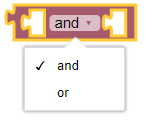
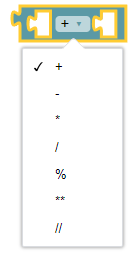
4. Adjust Blocks: Some blocks have configurable options. Click on the block to access these options.
5. View Code in Text: The "Code in Text Area" displays the Python code corresponding to the blocks you have connected. This helps you understand the relationship between visual programming and real code.
6. Run the Program: Click the "Run" button in the "Control Panel" to run the program. The output will be displayed in the "Console Area."
7. Use the Control Tools:
- Zoom Buttons: The "+" and "-" buttons at the bottom of the "Code in Blocks Area" allow you to zoom in and out of the view of the code in blocks.
- The button with the circle and crossed lines centers the view.
- Trash: The trash can icon in the "Code in Blocks Area" is used to delete blocks. Drag the blocks you want to delete to the trash can.
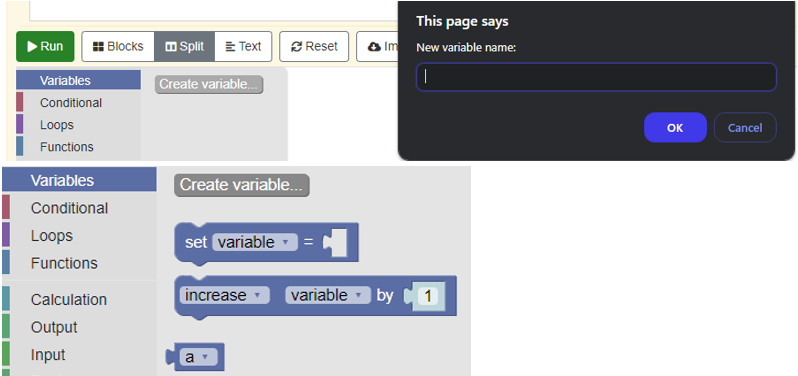
Variables
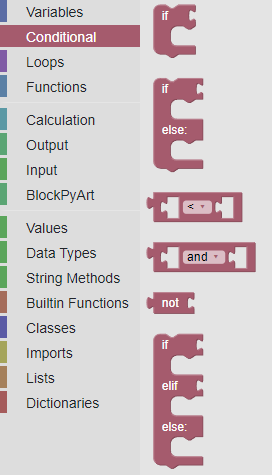
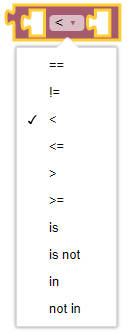
Conditional
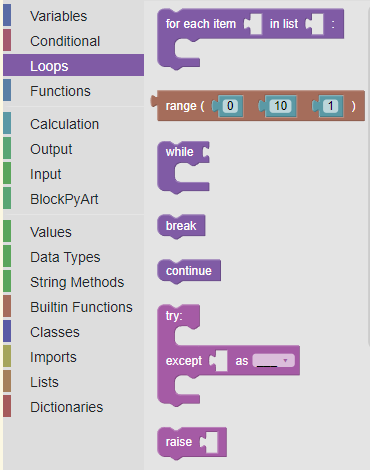
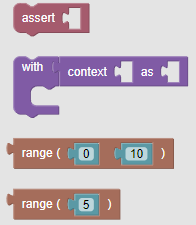
Loops
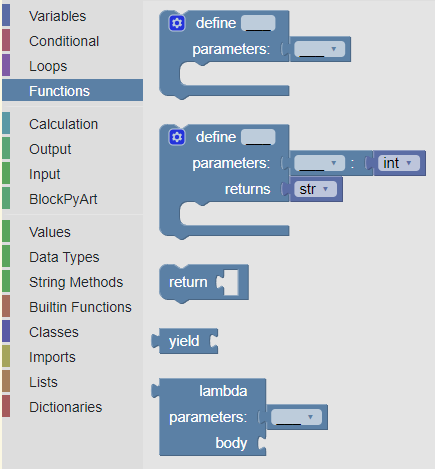
Functions
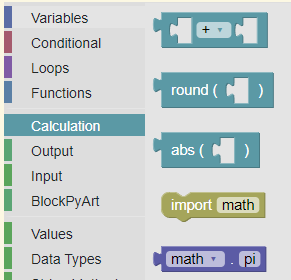
Calculation
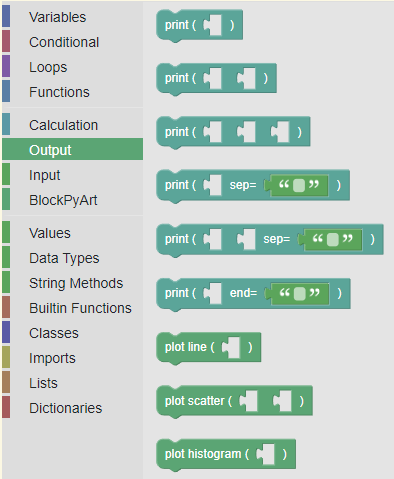
Output
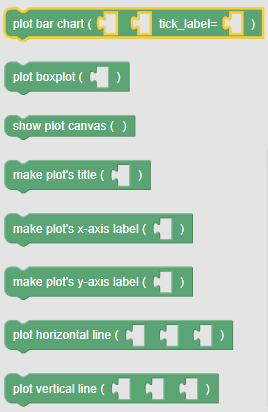
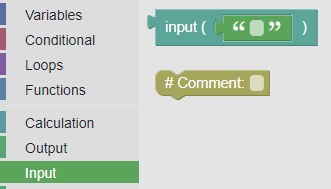
Input
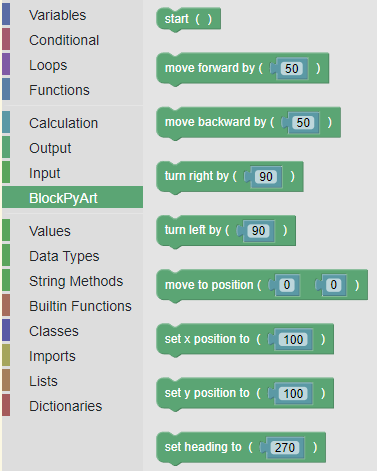
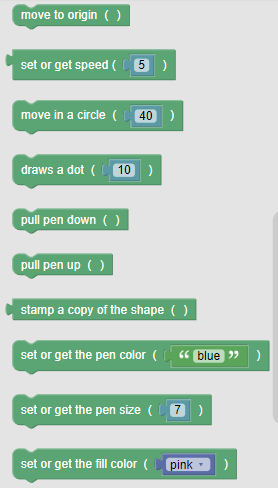
BlockPyArt
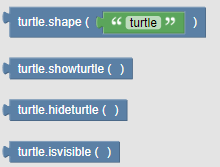
Values
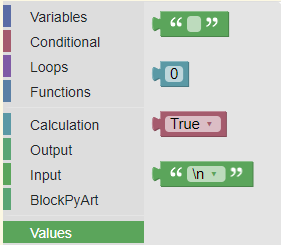
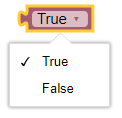
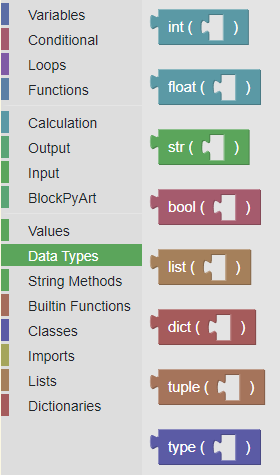
Data Types
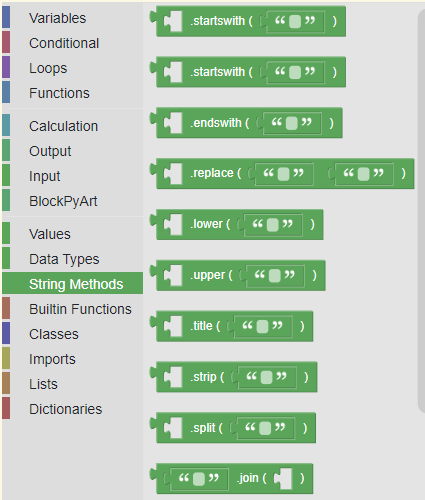
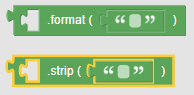
String Methods
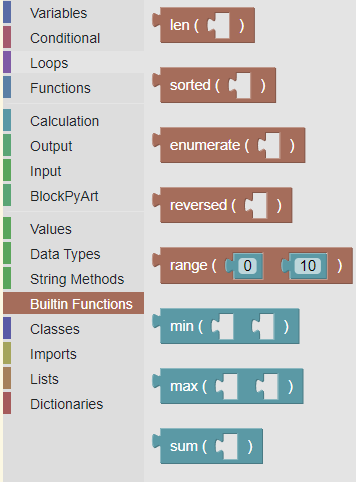
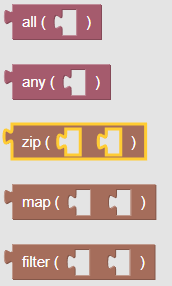
Builtin Functions
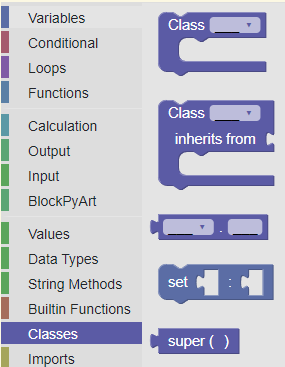
Classes
Imports
Lists
Dictionaries