Pencil Control
Introduction:
- Welcome to BlockPyArt, an exciting way to learn programming by drawing shapes and patterns on a screen. This tutorial focuses on controlling the pencil for drawing. Remember: Always use the “start” block to activate the BlockPyArt console. If you do not start with the start block, you will encounter an error and the commands will not work properly.
Pencil Control Commands
- pendown():
- Purpose: Lowers the pencil to start drawing.
Example:
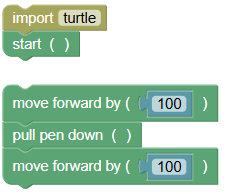 python
import turtle turtle.mainloop() turtle.forward(100) turtle.pendown() turtle.forward(100)
- penup():
- Purpose: Lifts the pencil to stop drawing.
Example:
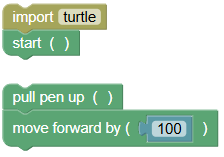 python
import turtle turtle.mainloop() turtle.penup() turtle.forward(100)
- pensize(size):
- Purpose: Sets the width of the pencil line.
Example:
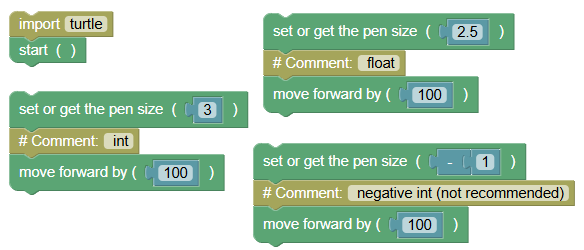 python
import turtle turtle.mainloop() turtle.pensize(3) # int turtle.forward(100) turtle.pensize(2.5) # float turtle.forward(100) turtle.pensize(-1) # negative int (not recommended) turtle.forward(100)Exercise: Set the pencil size to 5, 1.75, and -2 respectively.
Examples
- Drawing with Different Line Widths:
Example:
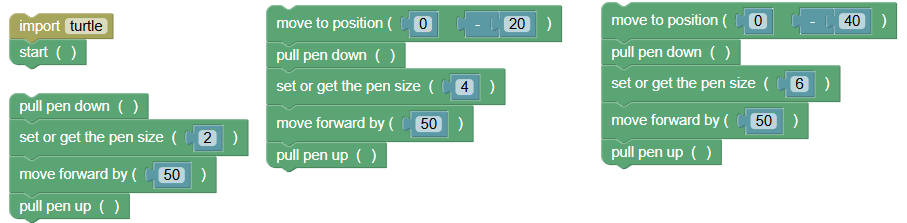 python
import turtle turtle.mainloop() turtle.pendown() turtle.pensize(2) turtle.forward(50) turtle.penup() turtle.goto(0, -20) turtle.pendown() turtle.pensize(4) turtle.forward(50) turtle.penup() turtle.goto(0, -40) turtle.pendown() turtle.pensize(6) turtle.forward(50) turtle.penup()
- Creating a Dashed Line:
Example:
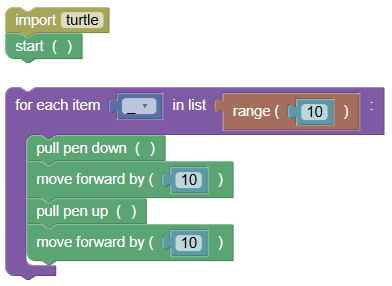 python
import turtle turtle.mainloop() for _ in range(10): turtle.pendown() turtle.forward(10) turtle.penup() turtle.forward(10)
Exercises
- Draw a Pattern with Different Pen Sizes:
Write a program to draw lines of different widths.
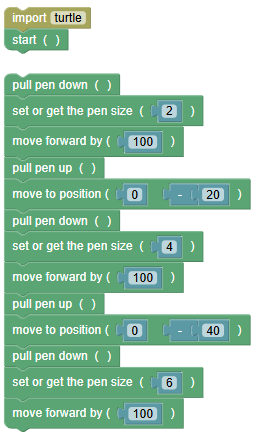 python
import turtle turtle.mainloop() turtle.pendown() turtle.pensize(2) turtle.forward(100) turtle.penup() turtle.goto(0, -20) turtle.pendown() turtle.pensize(4) turtle.forward(100) turtle.penup() turtle.goto(0, -40) turtle.pendown() turtle.pensize(6) turtle.forward(100)
- Draw a Dashed Circle:
Write a program to draw a dashed circle.
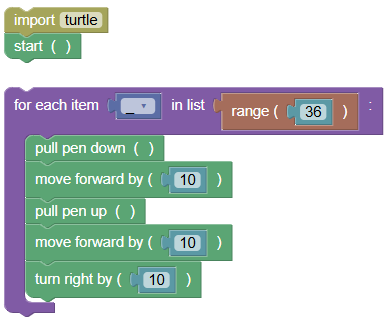 python
import turtle turtle.mainloop() for _ in range(36): turtle.pendown() turtle.forward(10) turtle.penup() turtle.forward(10) turtle.right(10)
Summary:
- In this tutorial, we learned how to control the pencil in BlockPyArt using the commands
pendown(),penup(), andpensize(). Remember to always use the start block to activate the BlockPyArt console. If you cannot start using the BlockPyArt blocks, there will be an error. Practice these commands and exercises to get comfortable with controlling the pencil in BlockPyArt and creating various drawings!